From sign-up to a closed month, step by step.
This is a sample journey through the real app, using demo numbers. Follow the seven steps to see how a month is planned, tracked and closed.
Create your free login
Pick a username and a password of at least 8 characters. That is all the sign-up there is.
- Open the Start free button
- Enter a username and password
- You land on your dashboard straight away
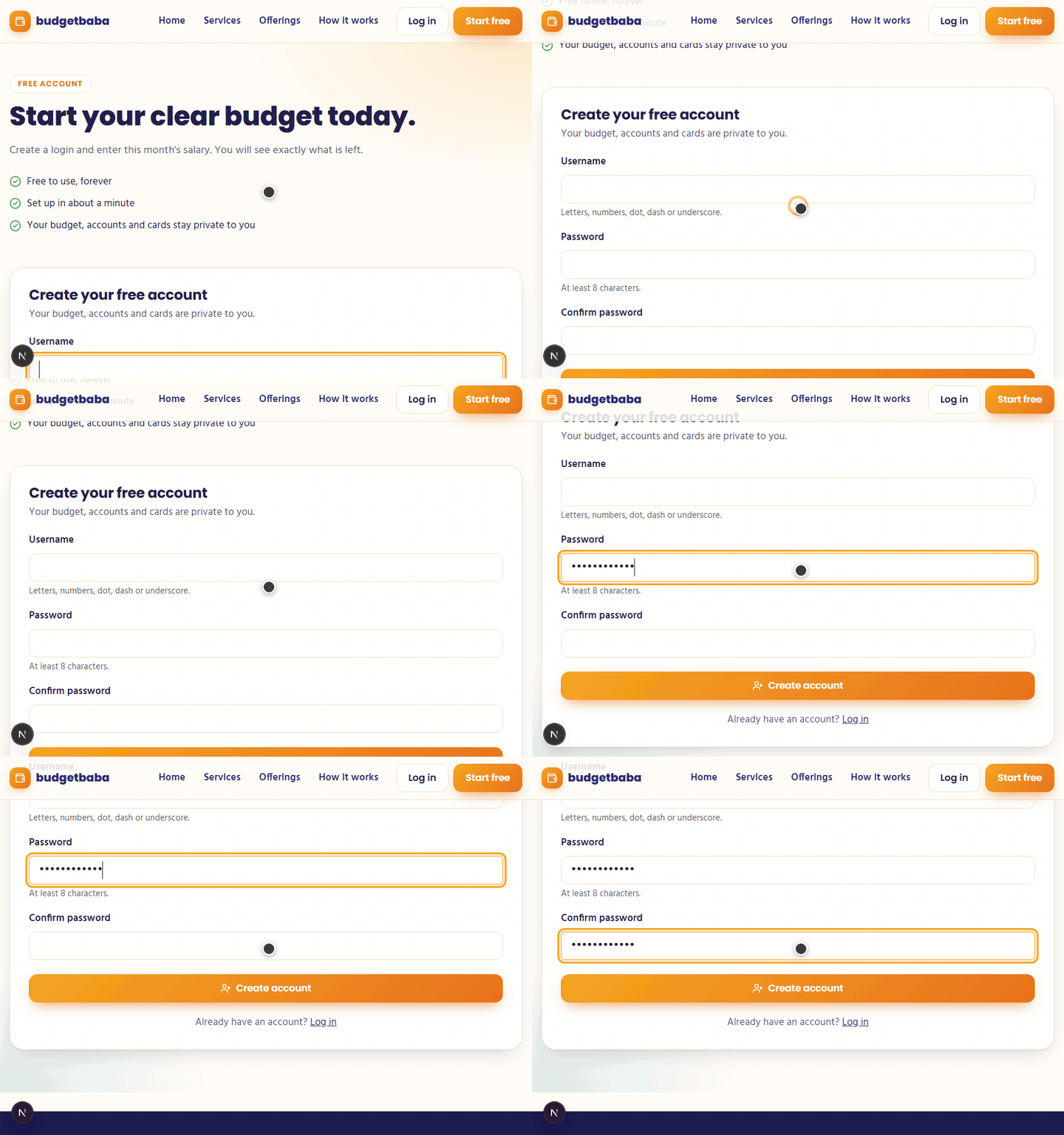
Step 1: Create your free login See your month on the dashboard
The dashboard opens on the current month. Four tiles show the total spent, what is left for you, bills still to pay and card bills.
- Money left is your salary minus what is paid
- Tap the arrow on the month header for details
- Choose another month from the list
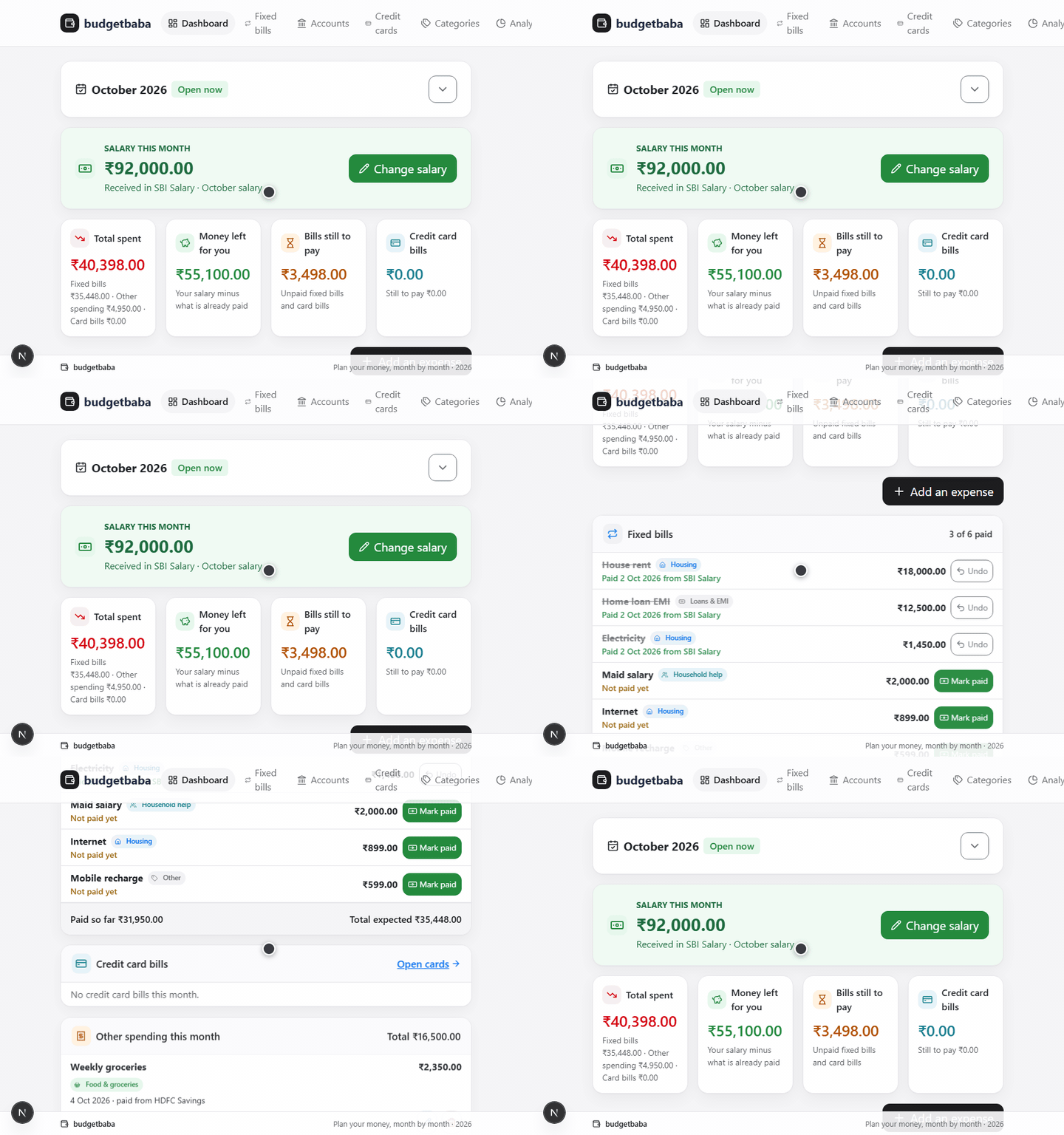
Step 2: See your month on the dashboard Add an expense
Press Add an expense. Give it a name and amount, pick the date, the category and where the money came from.
- Paid from a bank account or in cash
- Or add it as a credit card purchase
- It appears in Other spending straight away
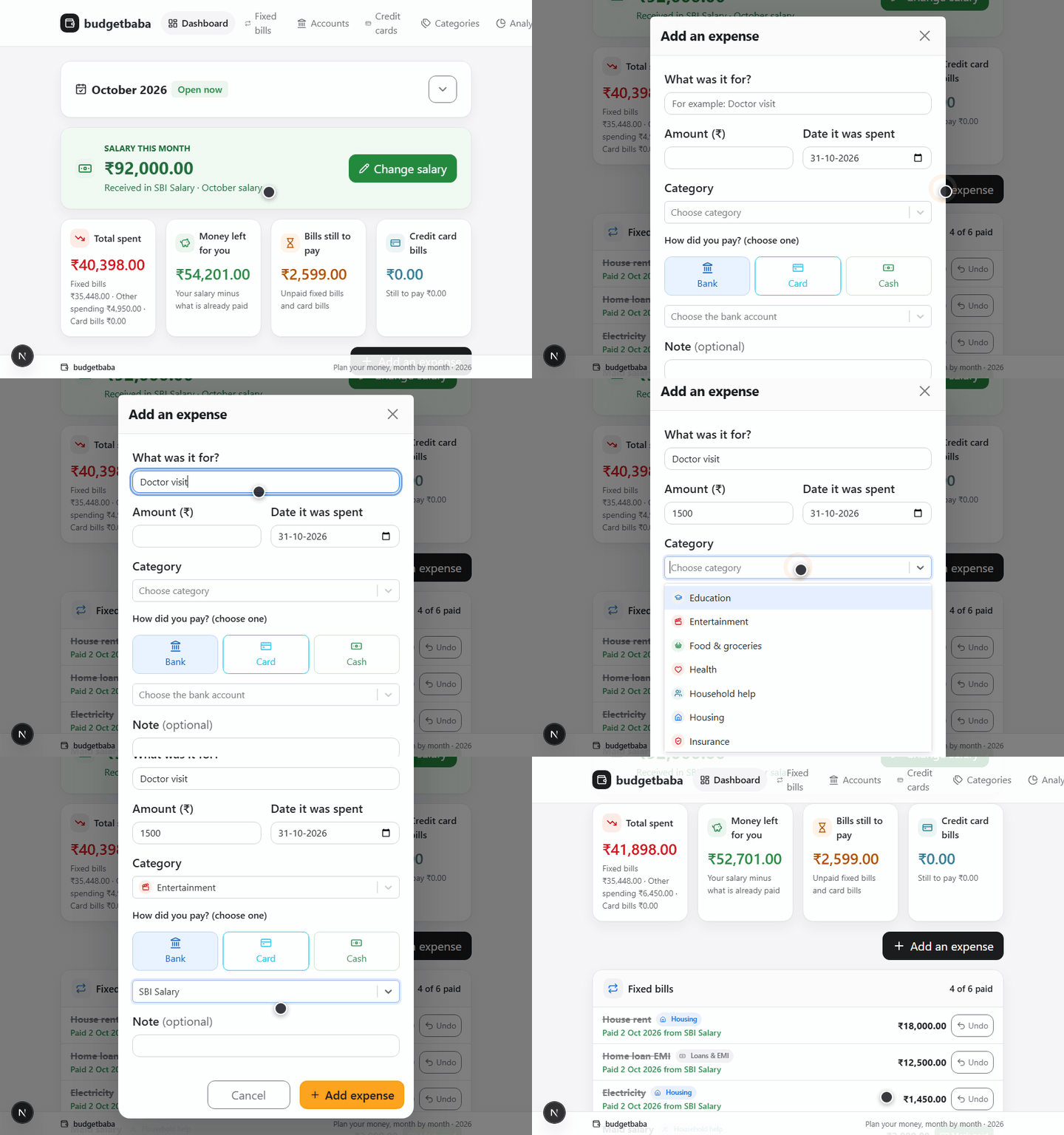
Step 3: Add an expense Mark fixed bills as paid
The Fixed bills card lists every recurring bill. When you pay one, tap Mark paid, check the amount and date, and choose the account.
- Amount can differ from the expected bill
- Undo is one tap if you made a mistake
- The paid count updates on the card
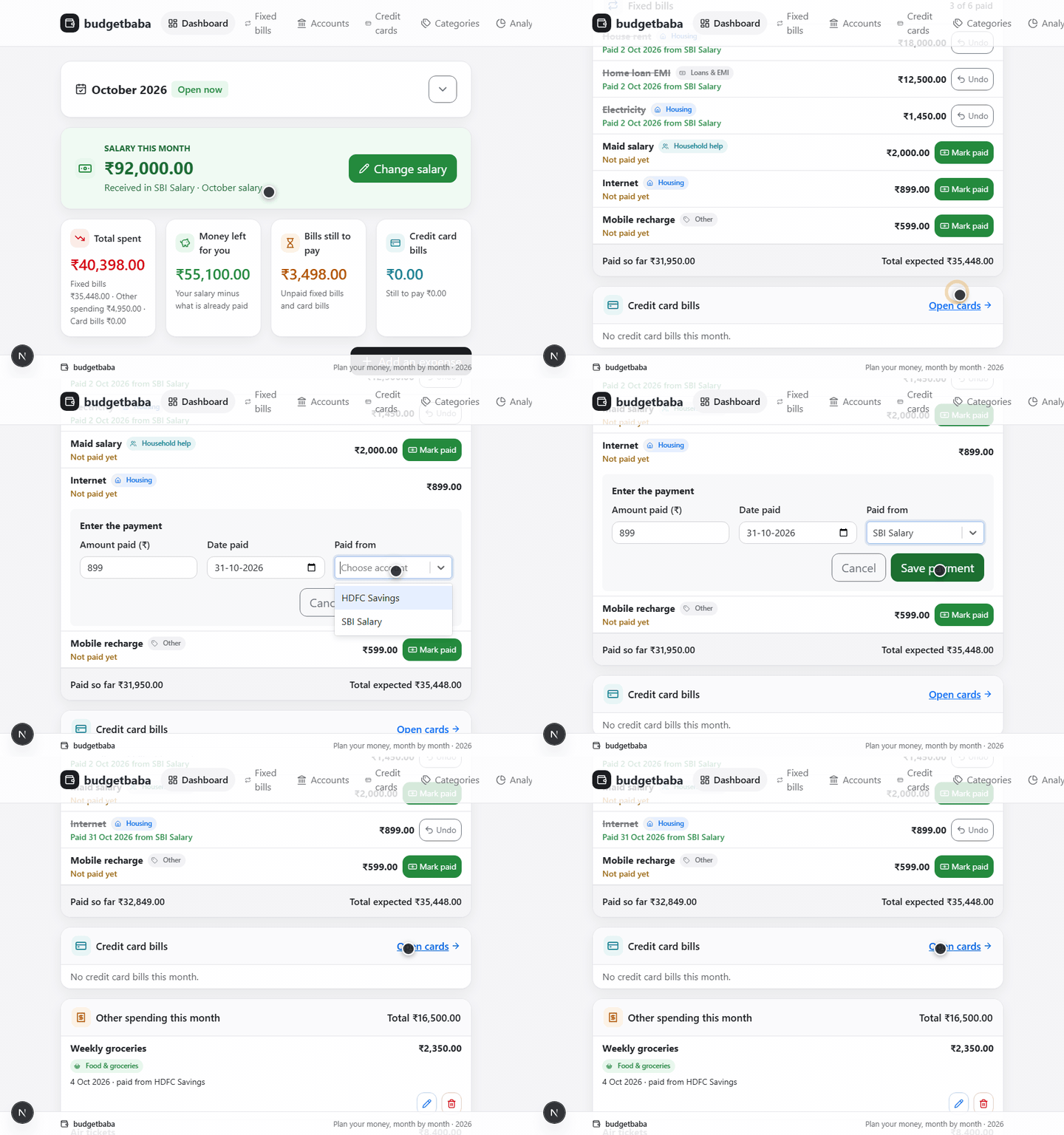
Step 4: Mark fixed bills as paid Keep credit cards in check
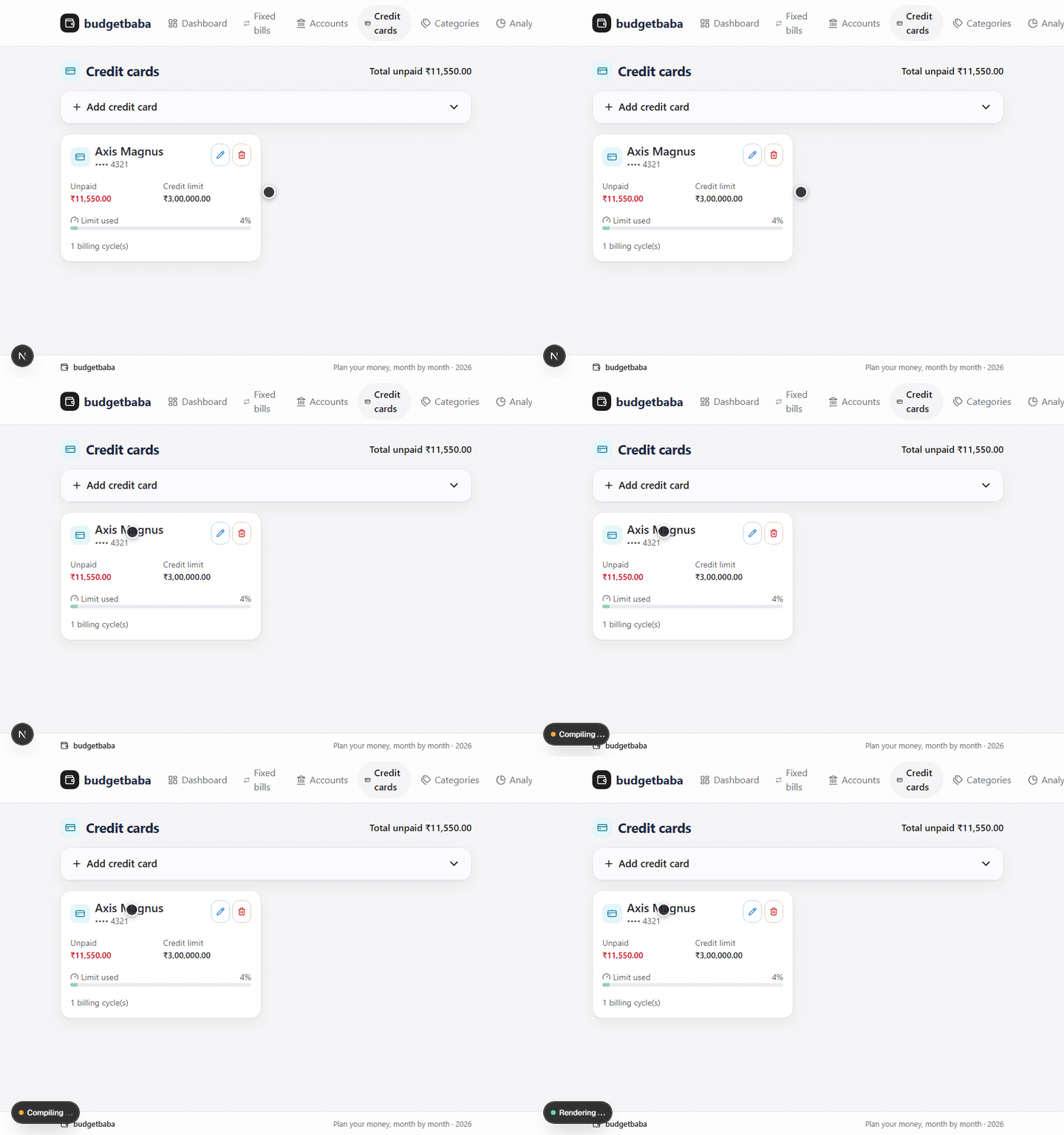
Add each card, log its purchases and see each billing cycle. Card bills appear on the dashboard with their due dates and status.
- Each cycle shows its total and due date
- Record a payment against the cycle
- Status shows Paid, Part paid, Due or Overdue
Step 5: Keep credit cards in check Understand where the money went
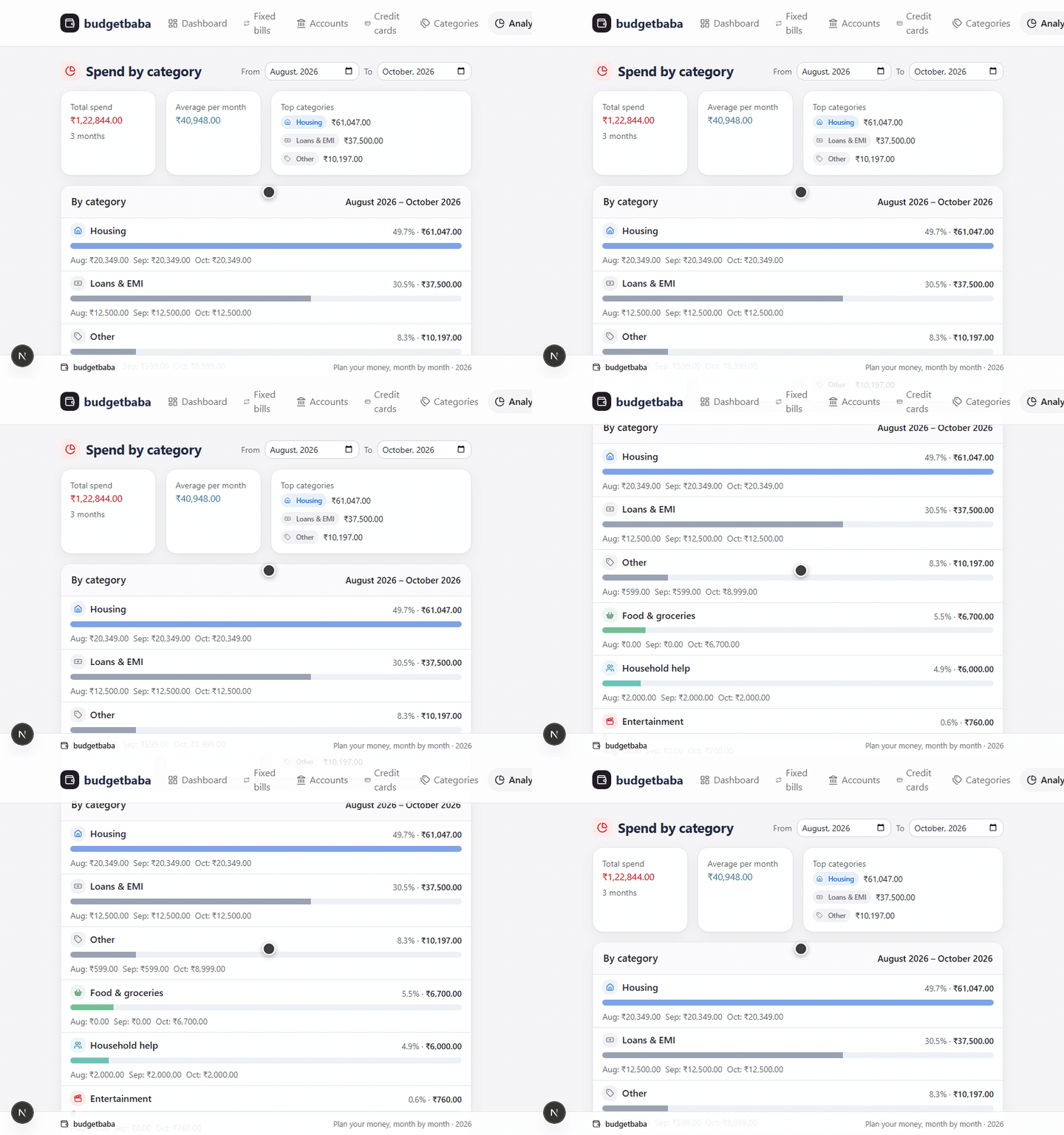
The Analysis page adds up spending by category for any range of months, so you can compare and cut back where it matters.
- Pick a From and To month
- Biggest categories are listed first
- Use the numbers to plan the next month
Step 6: Understand where the money went Close the month
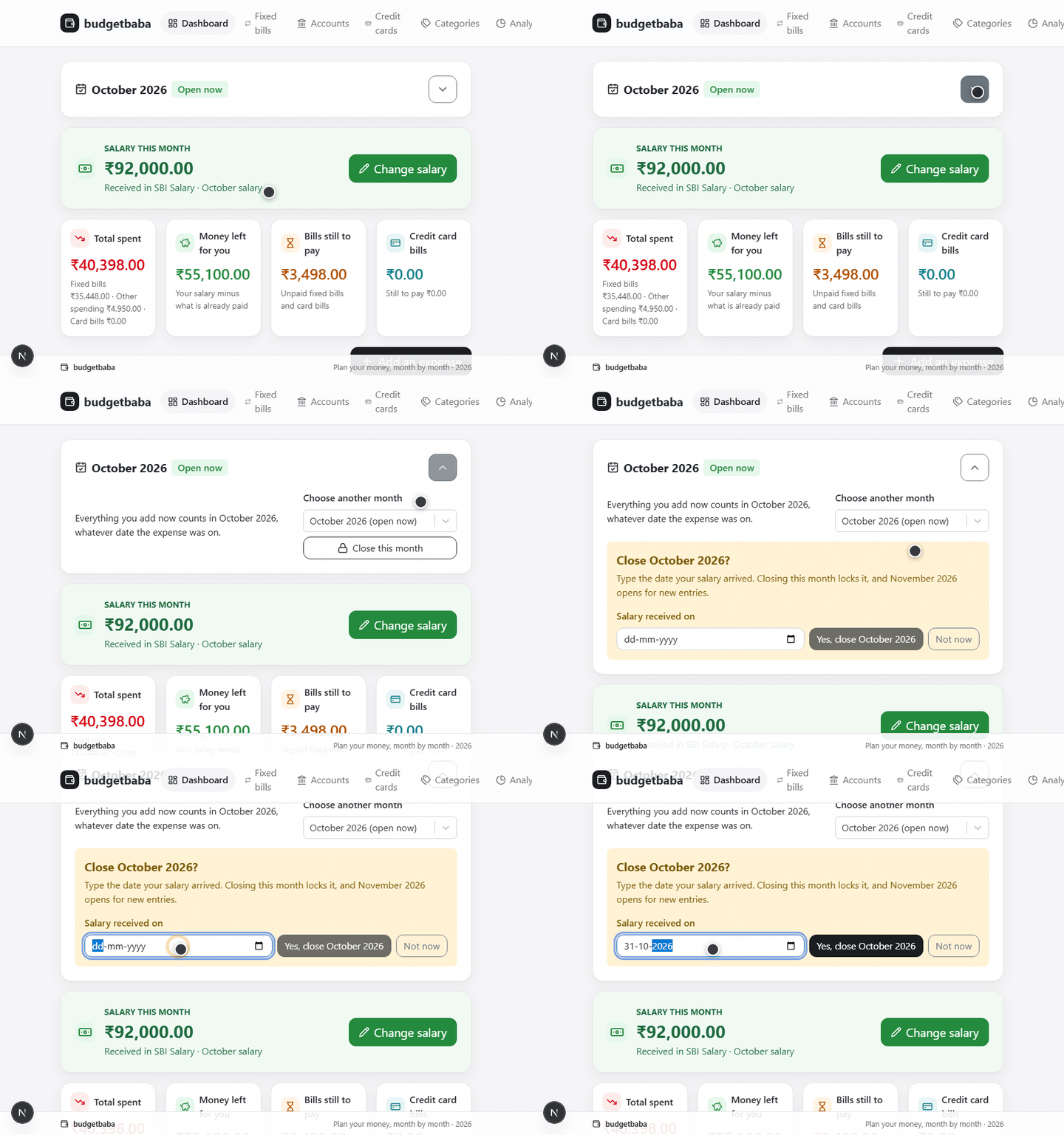
When the month is done, press Close this month and type the date your salary arrived. The month locks and the next one opens.
- A closed month cannot be changed
- The next month opens with a clean slate
- Your history stays available to look back at
Step 7: Close the month
Your first month is one sign-up away
It takes a minute to create your free login. Everything else is simple taps.